

Collect Earth Online (CEO) is used by practitioners, researchers, and institutions around the world to support land use, land cover, and forest monitoring efforts. As CEO’s global user community continues to grow, ensuring the platform is accessible via translation across languages becomes increasingly important. Language should never be a barrier to understanding tools, workflows, or documentation that support critical monitoring and decision-making.
CEO users interact not only with the platform interface, but also with supporting documentation that guides project setup, interpretation workflows, quality control, and best practices. For many users, English is not their first language, which can make both navigation and learning more challenging—even when the underlying tools are intuitive.
Browser-based translation helps reduce these barriers by allowing users to view the CEO interface and online documentation in their preferred language. This supports faster onboarding, clearer understanding of project settings and workflows, and more confident participation in data collection and analysis. For global and country-led monitoring efforts, this shared understanding is essential for consistency, collaboration, and data quality.
By enabling translation at the browser level, the CEO interface and documentation can be more accessible without altering the platform itself. This approach allows users to work in a way that best fits their linguistic context, helping ensure CEO remains usable and inclusive for a diverse, global community.
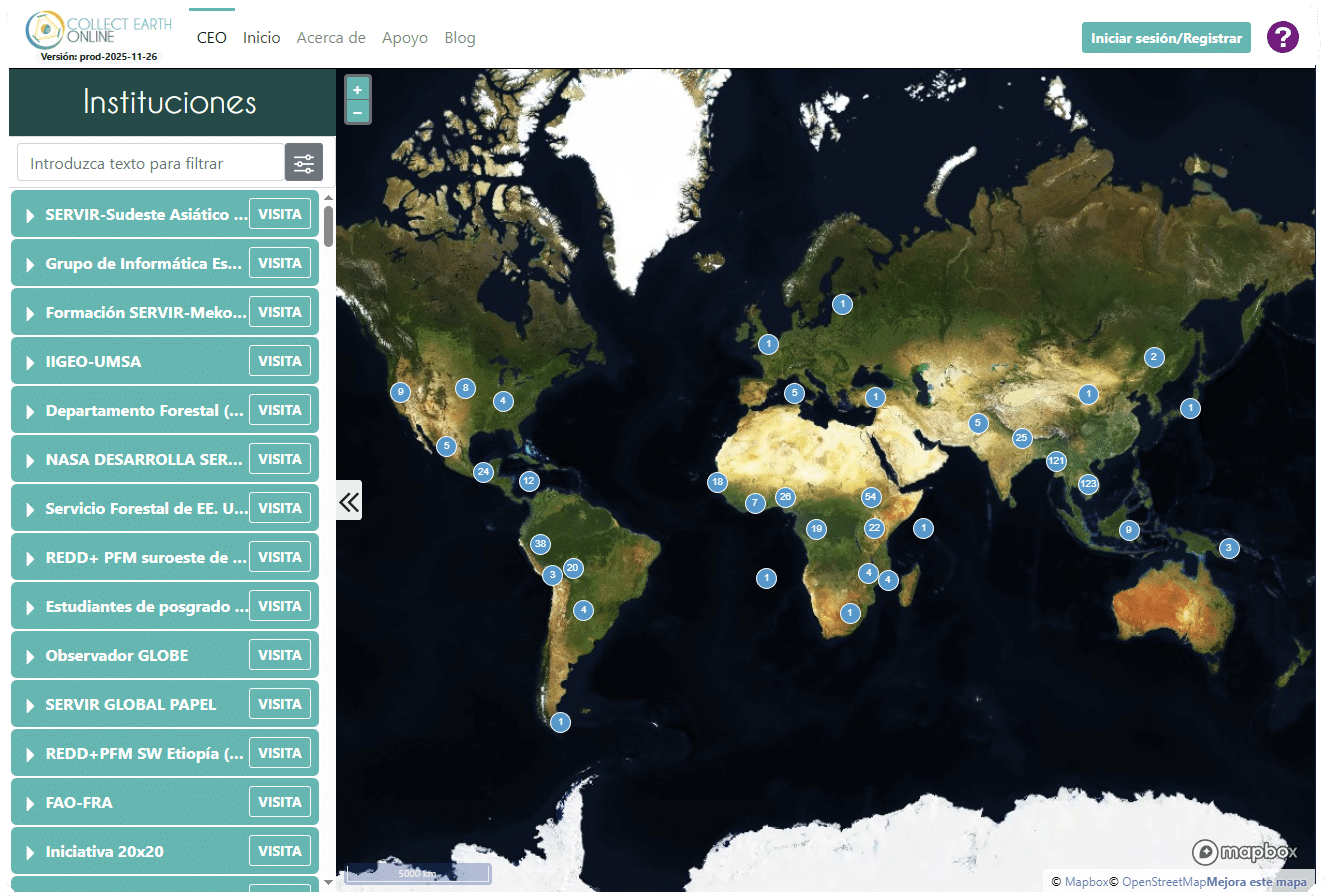
Google Chrome includes built-in translation tools that work seamlessly with both the Collect Earth Online interface and online documentation. To enable browser translation:

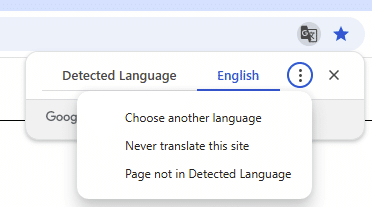
The translation happens entirely within the browser. The underlying CEO application and documentation remains unchanged, while the displayed text is translated in the user’s chosen language.
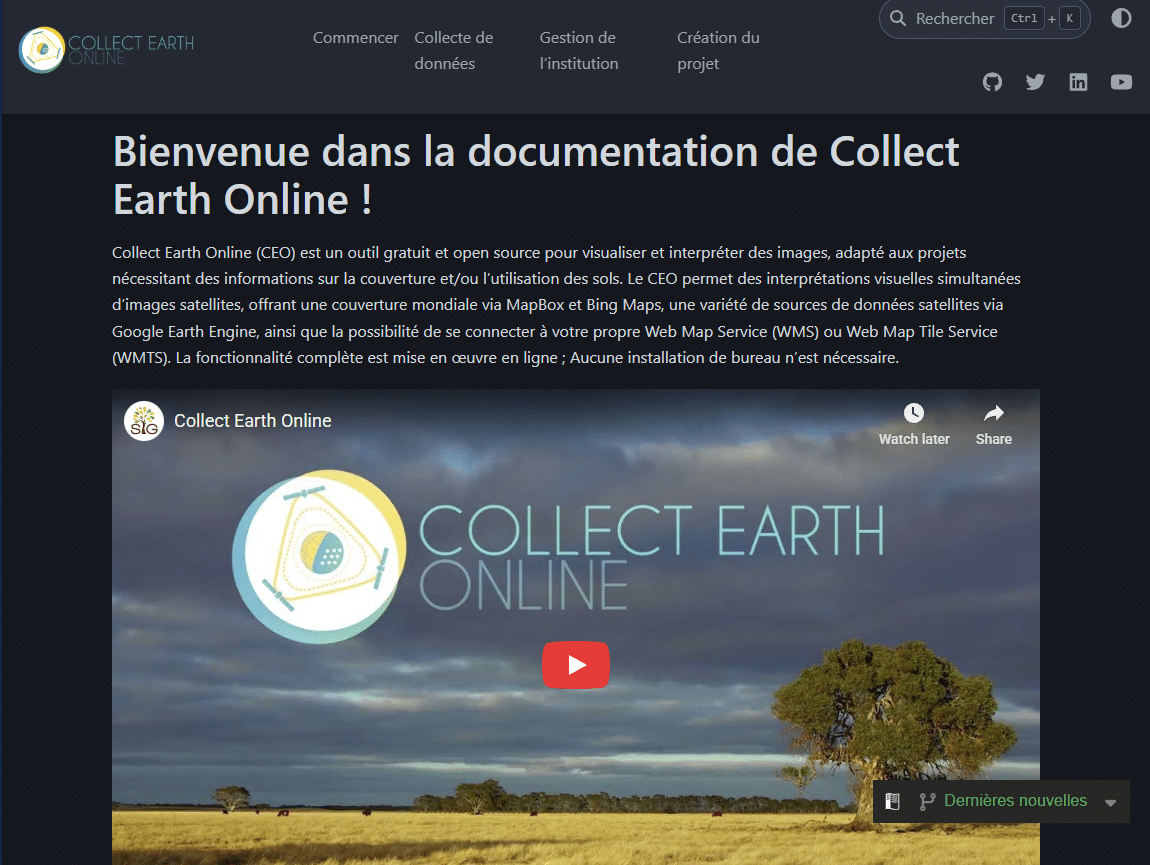
For full Chrome documentation, see: Translate pages and change Chrome languages.
Microsoft Edge offers built-in webpage translation using Microsoft Translator. This feature works seamlessly with both the Collect Earth Online application interface and the online CEO documentation.
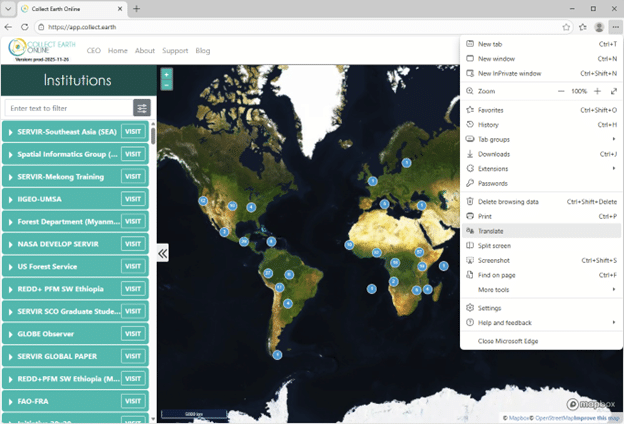

As with Chrome, the translation occurs entirely at the browser level. CEO’s underlying application, documentation, and functionality remain unchanged, while the displayed text is translated into the user’s chosen language.
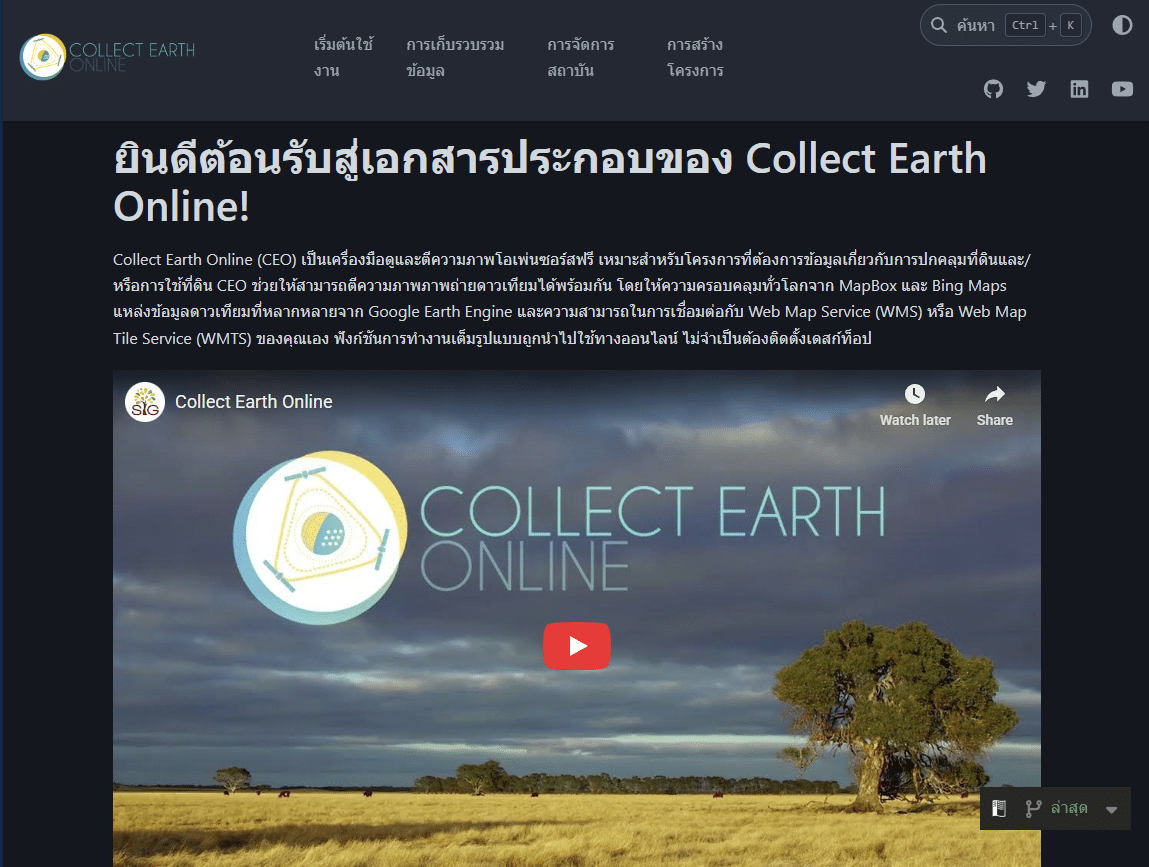
For official Microsoft documentation, see: Translate a webpage in Microsoft Edge.
Browser-based translation is enabled by advances in artificial intelligence and machine learning, particularly in natural language processing. Modern AI-powered translation systems can interpret complex user interfaces, technical terminology, and contextual language at scale, making both the Collect Earth Online platform and its documentation more accessible to a broader audience.
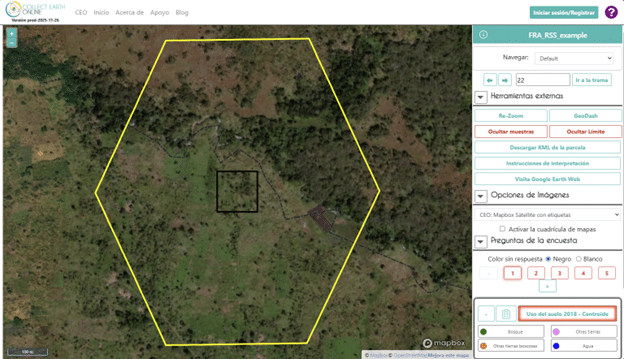
These capabilities help lower barriers to participation by supporting clearer onboarding, training, and day-to-day use. When users can more easily understand interface elements, instructions, and guidance in their preferred language, they can focus more effectively on interpretation, analysis, and decision-making rather than navigating language challenges. For a global platform like CEO, this directly supports more consistent workflows and inclusive collaboration across regions and institutions.
As AI technologies continue to evolve, they present new opportunities to further enhance accessibility and usability across CEO and similar tools. Browser translation is one practical example of how emerging technologies can be leveraged today to support a more inclusive user experience, while laying the foundation for continued improvements in the future.